
Want to go further with SOLIDWORKS assemblies and drawings? Get SOLIDWORKS video tutorials, exercise files, and online training from SolidProfessor. Updated September 2026.
An exploded view drawing shows how an assembly goes together, and a bill of materials (BOM) lists every component in it. Together they are one of the most useful drawings you can send to manufacturing, assembly teams, or customers. In this SOLIDWORKS tutorial, you’ll create an exploded view of a simple sheet metal enclosure, place it on a drawing, add a bill of materials, and label each part with balloons. The same steps work for much larger assemblies.
What You’ll Build
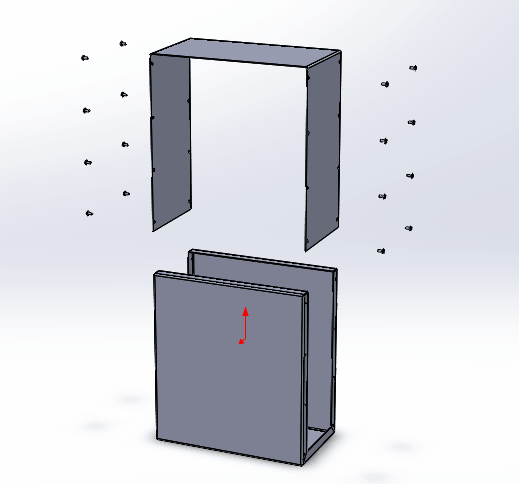
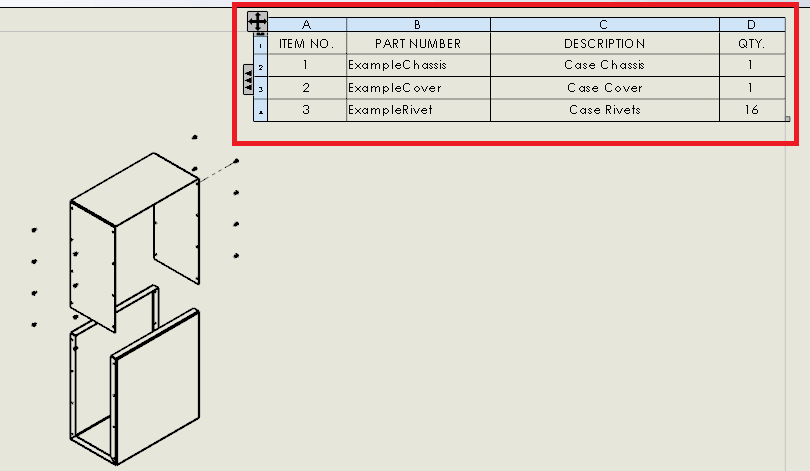
The example assembly has three kinds of parts: one sheet metal chassis, one cover, and 16 rivets. By the end, you’ll have a drawing with an isometric exploded view, explode lines that show where the rivets go, a bill of materials table, and numbered balloons that tie each part to the table.
Step 1: Create the Exploded View
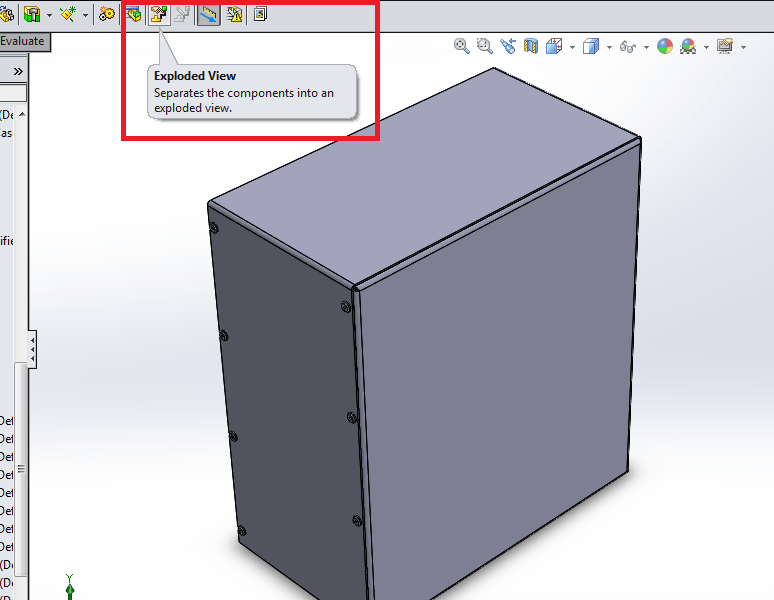
Open the assembly. On the Assembly tab, click Exploded View.
In the FeatureManager design tree, select the first eight rivets.
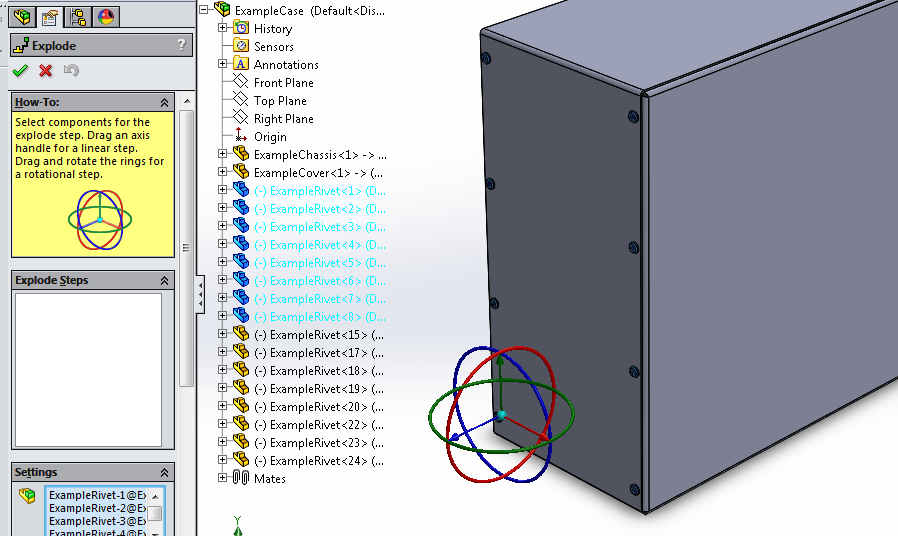
A triad (three-axis manipulator) appears in the graphics area. Drag the blue Z-axis arrow to move the rivets away from the sheet metal cover, then click in empty space to complete the first explode step.
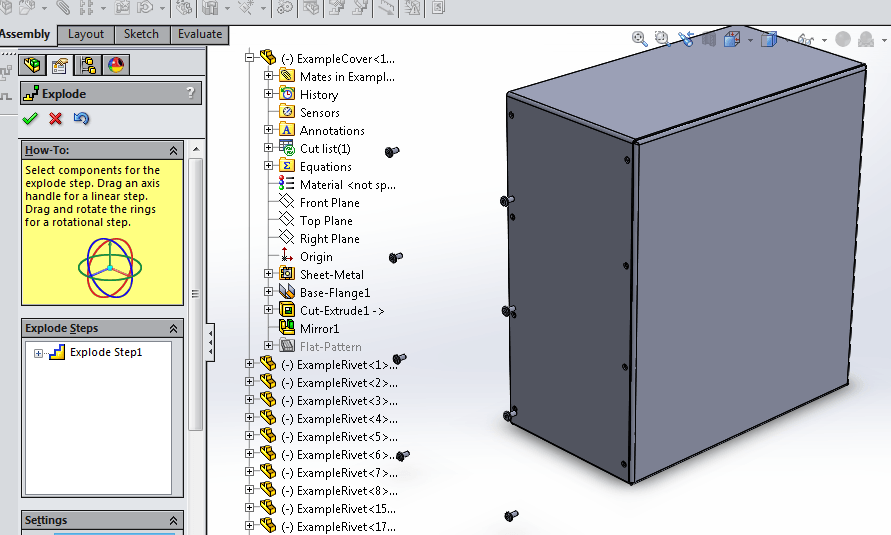
Repeat the process for the second set of eight rivets on the opposite side of the assembly.
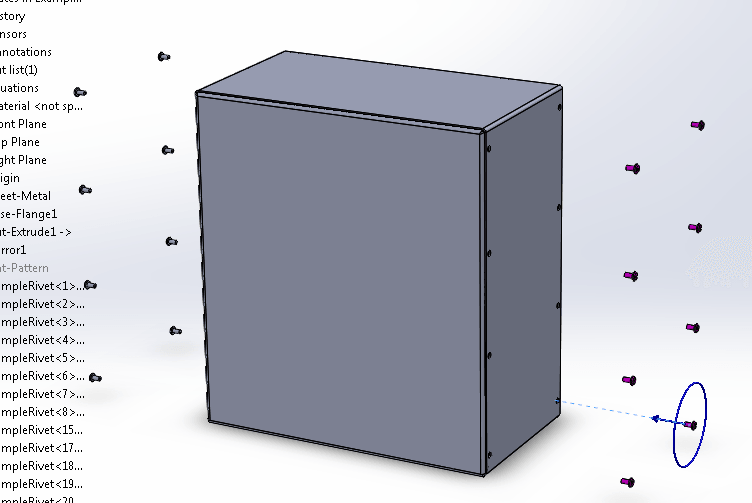
Click in empty space again to finish the second explode step. Then select all 16 rivets and the cover and drag them along the Y axis so they float above the chassis.
Step 2: Add Explode Lines
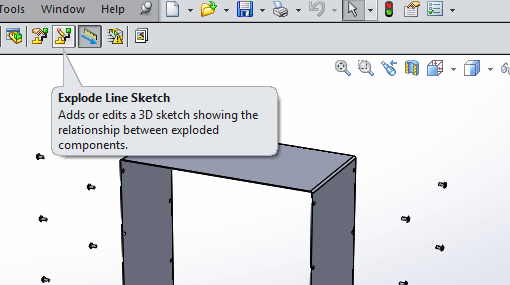
Explode lines show exactly where fasteners and small parts go, which makes the drawing much easier to follow. Click Explode Line Sketch (in the Exploded View drop-down on the Assembly tab).
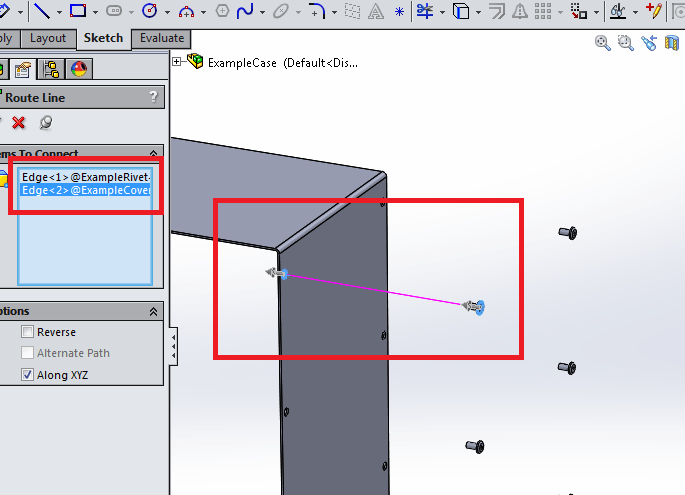
Select the outside edge of one rivet head, then select the edge of its matching hole. If the line points the wrong way, use the Reverse option. Click OK to close the Route Line PropertyManager, then exit the sketch.
Step 3: Make a Drawing From the Assembly
Go to File > Make Drawing from Part/Assembly.
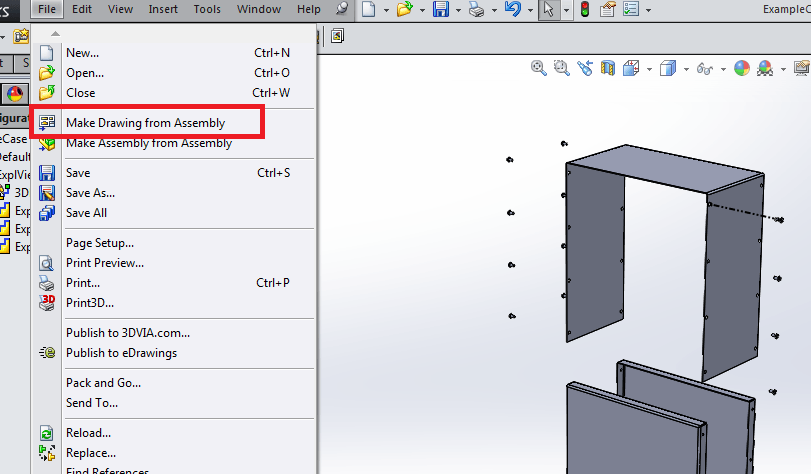
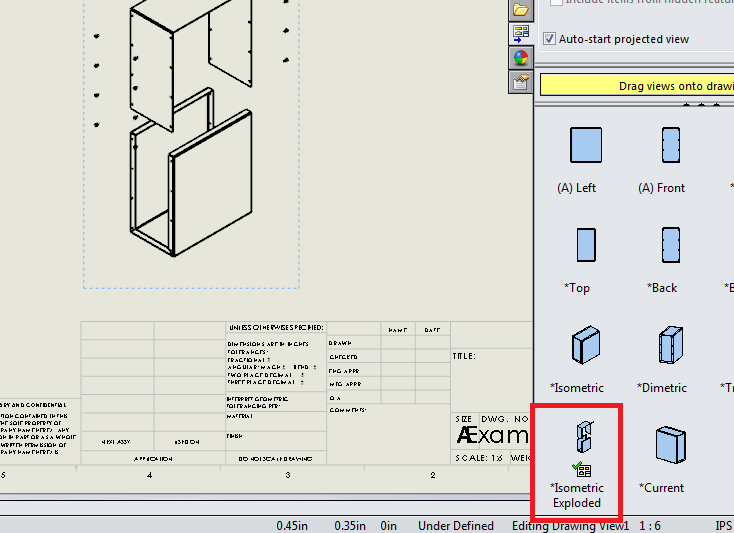
Choose a sheet format. The View Palette opens on the right side of the screen with the available views of your assembly. Drag the Isometric Exploded view onto the drawing sheet. If you don’t see an exploded view in the palette, make sure the exploded view was saved in the assembly’s active configuration.
Step 4: Insert the Bill of Materials
Select Insert > Tables > Bill of Materials (also found under Tables on the Annotation tab).
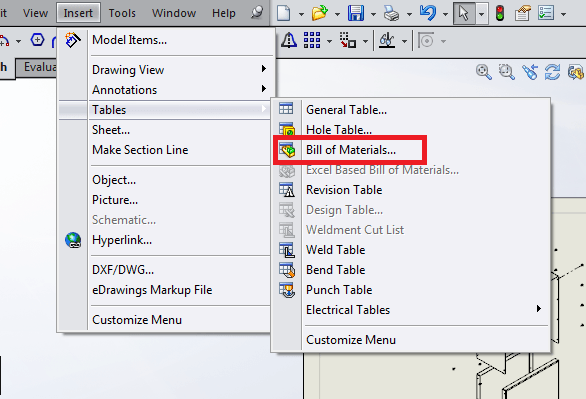
Select the exploded view, click OK, and place the table in the upper right corner of the sheet. SOLIDWORKS fills in the item numbers, part numbers, descriptions, and quantities from the assembly automatically.
Step 5: Add Balloons
On the Annotation tab, click Balloon.
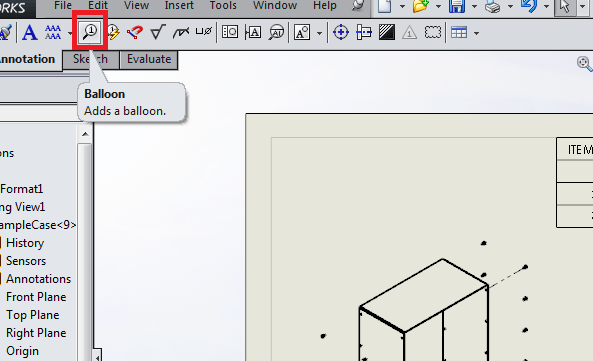
Click each of the three part types to attach a numbered balloon. The balloon numbers match the item numbers in the bill of materials.
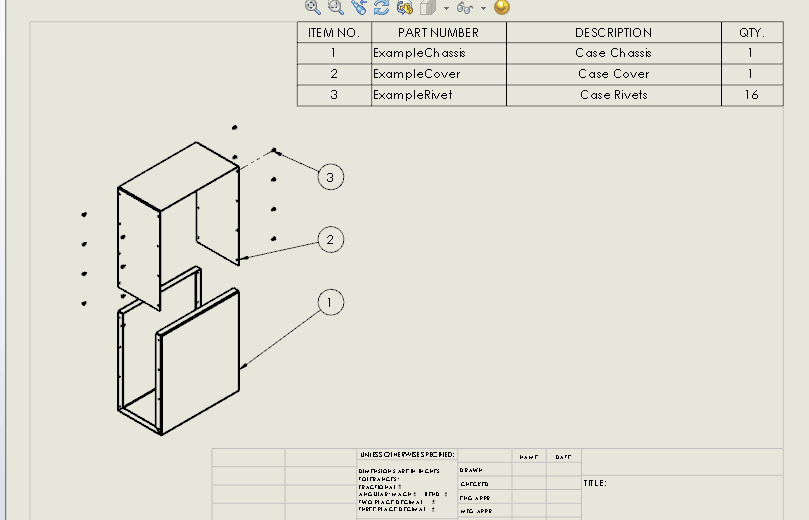
That completes a basic exploded assembly drawing with a bill of materials.
Tips for Better Exploded View Drawings
- Use Auto Balloon on large assemblies. Auto Balloon places balloons on every component in the view at once, which saves a lot of clicking.
- Explode in the order parts are assembled. Creating explode steps in assembly order makes the drawing read like instructions.
- Animate the explode. Right-click the exploded view in the ConfigurationManager and choose Animate Explode to check the sequence, or to create a quick assembly video.
- Collapse when you’re done. Right-click the assembly and choose Collapse to return to the assembled state without losing the exploded view.
- Group identical fasteners. The BOM combines identical parts into one row with a quantity, so you only need one balloon per part type.
Frequently Asked Questions
Where is the exploded view saved in SOLIDWORKS?
Exploded views are saved in the assembly’s configuration. You can find them in the ConfigurationManager under the active configuration.
Why doesn’t my exploded view show up in the drawing?
Check that the drawing view references the configuration that contains the exploded view, then turn on Show in exploded or model break state in the drawing view’s PropertyManager.
Can I edit the bill of materials?
Yes. You can add or hide columns, change the item numbering, and pull in custom properties such as material or vendor. Changes to the assembly update the BOM automatically.
If you are interested in more tutorials, check out how to make threads in SOLIDWORKS, and browse more 3D Engineer SOLIDWORKS tutorials. If you’re working toward certification, drawings and assemblies both show up on the exams, so see the SOLIDWORKS Certification Guide too.
Feel free to add any advice, tips, or thoughts in the comments.
Get SOLIDWORKS video tutorials, sample exams, exercise files, and online training now. 3DEngr.com readers get 25% off a personal SolidProfessor membership with promo code 3DENGR25.